SplitFast in Claude
SplitFast connects to Claude as a connector. Claude then sees your SplitFast groups: it can tell you who owes whom after a trip, record an expense from what you say and split a receipt between people. Each entry reaches your Telegram group marked “via Claude”, with an Undo button.
What to ask Claude
Write the way you talk. The assistant decides what to ask SplitFast and shows the answer as a card.
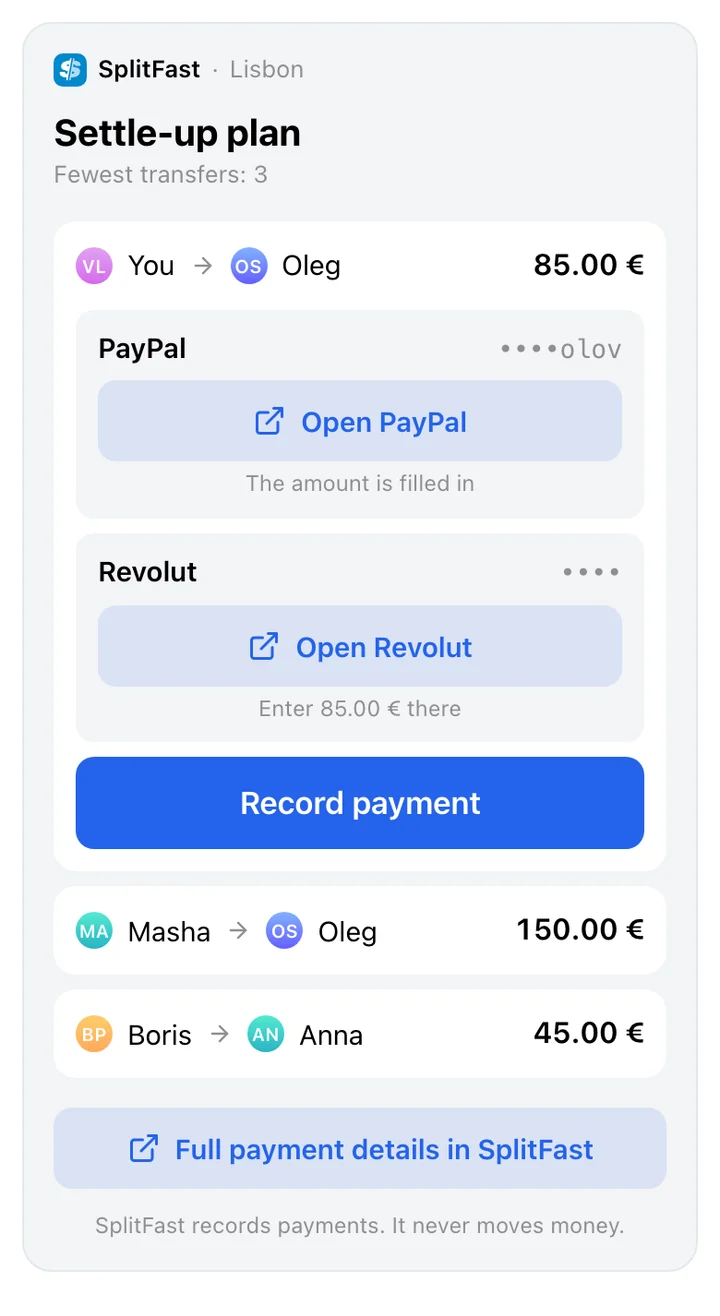
Who owes whom for the trip?
A plan with the fewest transfers. If you owe, the recipient’s payment page is linked next to it.
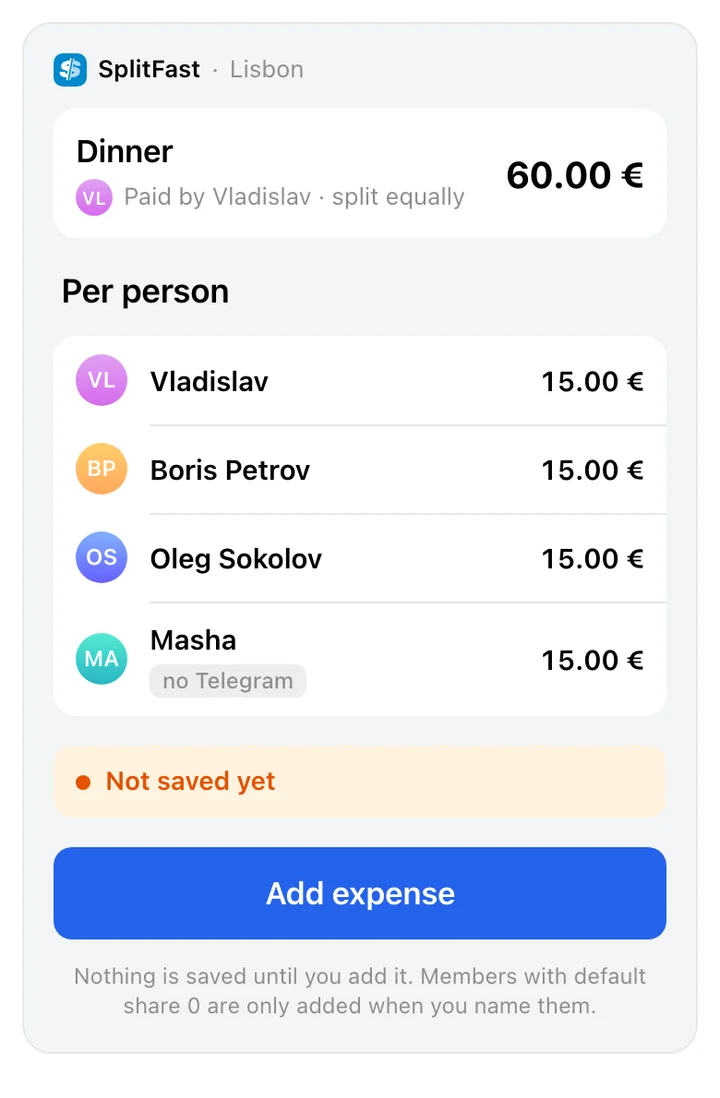
Boris paid €24 for the taxi, split between him and me
A card with the split. You don’t have to be the payer: the expense goes on Boris.
Split this receipt: pastries for all, coffee for Boris and me
Claude reads the photo itself and passes SplitFast the list of items. SplitFast checks the total and assigns the items to people.
receipt photo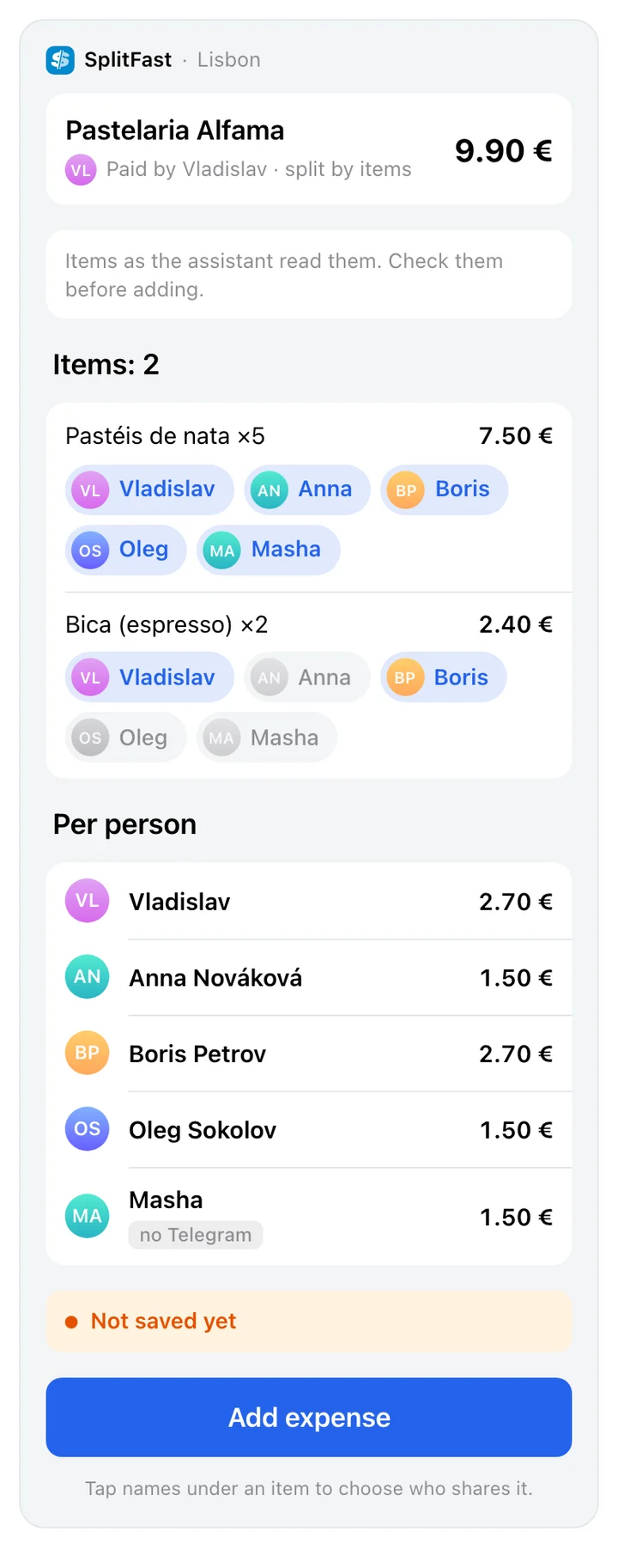
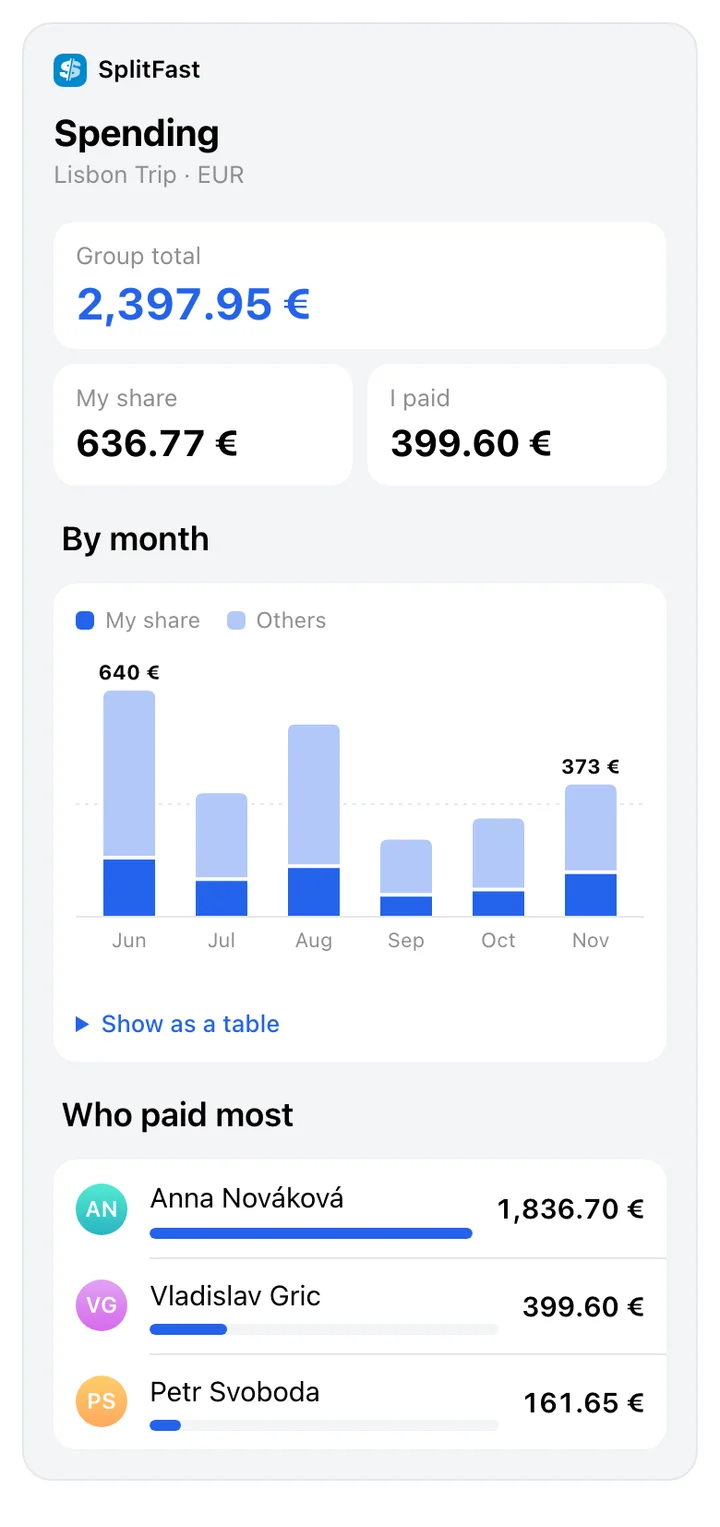
How much have we spent over the last three months?
A chart by month: what the group spent and your share of it.
Remind Masha about her debt
The bot posts a reminder in the group chat. The same debt can be reminded again after a day.
How to connect SplitFast to Claude
https://mcp.splitfast.io/mcpOpen connectors
On claude.ai or in the desktop app: Settings → Connectors → Add custom connector.
Paste the URL
Name: SplitFast, URL: https://mcp.splitfast.io/mcp. Click Add, then Connect.
Sign in with Telegram
A SplitFast page opens and lists what the assistant will be able to do. Click “Continue with Telegram” and confirm the sign-in in Telegram.
Turn SplitFast on in a conversation
Back in Claude, open the tools menu in the message box and make sure SplitFast is on. Ask: “Which groups do I have in SplitFast?”
No separate step on your phone: a connector added on claude.ai shows up in the mobile app under the same account.
In Claude Code
claude mcp add --transport http splitfast https://mcp.splitfast.io/mcp
Then run /mcp, pick splitfast and sign in with Telegram in the browser window that opens.
What the group sees
Every expense Claude adds is posted by the bot in the group chat: “➕ Taxi · 24.00 EUR · via Claude” with an Undo button. The person who used the assistant and the payer can tap it. A member whose Default Portion is 0 is never added on their own, only when you name them.
Frequently asked questions
Does this work in the Claude mobile app?
Yes. A connector added on claude.ai shows up in the Claude desktop and mobile apps under the same account.
How does Claude split a receipt?
You attach the photo to the conversation, Claude reads the items and prices and passes them to SplitFast. SplitFast checks that the items add up to the total and shows a card where any line can go to someone else.
Can Claude save an expense without me knowing?
No. By default Claude asks your permission before an action that records something, and every saved expense shows up in the group chat right away. If you change your mind, tap Undo under the post or ask Claude to undo the last entry.
Can Claude read my Telegram chats?
No. Signing in with Telegram only confirms it is you. Claude gets access to your SplitFast groups: expenses, members and balances.
How do I disconnect SplitFast from Claude?
Send /apps to @SplitFastBot in a private chat, or open Profile → Connected assistants in the Mini App, and tap Disconnect. Access ends at once.