How to connect SplitFast to ChatGPT and Claude
It takes a couple of minutes. You add SplitFast to your assistant, sign in with Telegram and return to the conversation. The bot then sends you a private message about the new connection, with a Disconnect button.
https://mcp.splitfast.io/mcpYou need it for Claude, ChatGPT developer mode and developer tools.
Claude
Open connectors
On claude.ai or in the desktop app: Settings → Connectors → Add custom connector.
Paste the URL
Name: SplitFast, URL: https://mcp.splitfast.io/mcp. Click Add, then Connect.
Sign in with Telegram
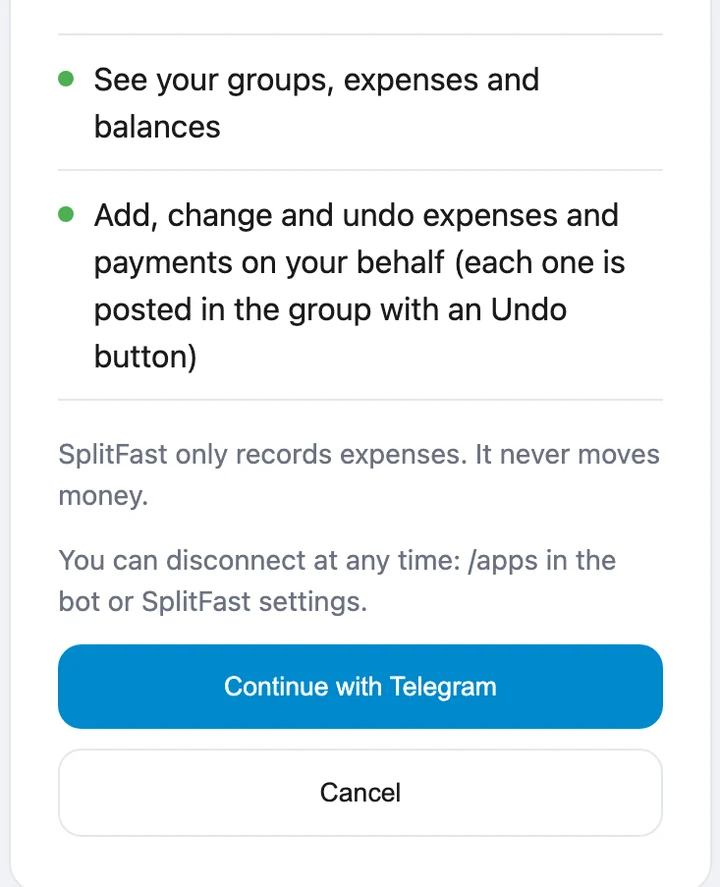
A SplitFast page opens and lists what the assistant will be able to do. Click “Continue with Telegram” and confirm the sign-in in Telegram.
Turn SplitFast on in a conversation
Back in Claude, open the tools menu in the message box and make sure SplitFast is on. Ask: “Which groups do I have in SplitFast?”
No separate step on your phone: a connector added on claude.ai shows up in the mobile app under the same account.
ChatGPT
Once SplitFast is in the ChatGPT apps directory, find it there and click Connect. Until then, connect it by hand in developer mode:
Turn on developer mode
Settings → Apps → Advanced settings → Developer mode.
Create the app
Click Create app. Name SplitFast, URL https://mcp.splitfast.io/mcp, authentication: OAuth.
Sign in with Telegram
ChatGPT opens the SplitFast page. Click “Continue with Telegram”, confirm, and you are taken back to ChatGPT.
Pick SplitFast in a new conversation
In the “+” menu next to the message box, choose SplitFast. You can attach a receipt photo in the same conversation.
Developer mode is not available on every ChatGPT account, and both assistants rename menu items from time to time. If an item is not where we say, look for apps or connectors in the settings.
Claude Code, Codex, Cursor
Any app that connects remote MCP servers with a browser sign-in will work.
Claude Code
claude mcp add --transport http splitfast https://mcp.splitfast.io/mcp
Then run /mcp in Claude Code, pick splitfast and sign in with Telegram in the browser window that opens.
Codex CLI
codex mcp add splitfast --url https://mcp.splitfast.io/mcp
If Codex does not start the sign-in itself, run codex mcp login splitfast.
Cursor
{
  "mcpServers": {
    "splitfast": { "url": "https://mcp.splitfast.io/mcp" }
  }
}
Add this to mcp.json and click the sign-in button next to SplitFast in the MCP settings.
After connecting
- The bot sends you a private message, “🔗 Claude is now connected to your SplitFast account…”, with a “Disconnect Claude” button.
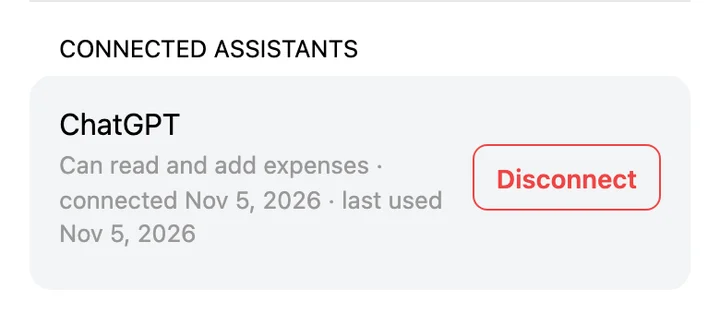
- The connection appears in the Mini App under Profile → Connected assistants.
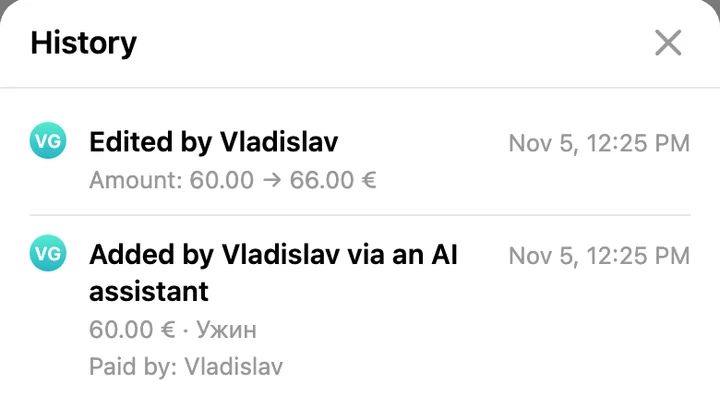
- Every expense the assistant adds is posted in the group chat, marked “via Claude” or “via ChatGPT”, with an Undo button.
How to disconnect
- In the bot: send
/appsin your private chat with @SplitFastBot and tap Disconnect next to the assistant. - In the Mini App: Profile → Connected assistants → Disconnect.
- Access ends at once: SplitFast refuses the assistant’s next request. You can also remove the connector in the assistant’s own settings, but closing access on the SplitFast side with one of the two ways above is the reliable option.
Troubleshooting
- After signing in you see “Connection is available with SplitFast Premium”
- Your account has no active personal subscription. A supergroup does not count. Check your plan in the bot and connect again.
- The assistant says an active SplitFast Premium subscription is needed
- Your subscription has ended. The connection stays in place: once the subscription is active again, it works without signing in again.
- The assistant says the connection was granted read-only access
- The assistant asked for read-only access when it connected. Disconnect it in /apps and connect again.
- The assistant says “Group not found”
- The assistant only sees groups you are a member of. Ask it to list your groups and use the name exactly as it appears there.
- “We could not find a SplitFast account for this Telegram account”
- You have not used SplitFast yet. Start @SplitFastBot, then connect again.
- The assistant does not use SplitFast
- Make sure SplitFast is on in the conversation’s tools menu, and name it: “check in SplitFast”.
Frequently asked questions
Why sign in with Telegram?
Your SplitFast account is your Telegram account; SplitFast has no passwords. So the sign-in is confirmed in Telegram, and the assistant gets access to your account only.
Can I connect both ChatGPT and Claude?
Yes. Each one connects separately and has its own line in /apps and in the Mini App profile. You can disconnect either without touching the other.
Does it work on my phone?
Yes. Connect SplitFast once in a browser and it is available in the ChatGPT and Claude mobile apps under the same account.
Will I have to sign in again?
Usually not. Sometimes the assistant asks you to confirm again, for example after a long break or after you disconnected it in /apps.